
Get started
Wealthboard becomes useful as soon as it has one accurate account. You do not need to import years of history before the dashboard can help you.
Before you begin
Your server operator chooses how people sign in:
- Local: create a username and password on the signup page.
- OpenID Connect: select the provider button on the login page.
- Hybrid: either method is available; an existing local user should link the provider from Settings before using provider login for the first time.
Each Wealthboard user has an independent portfolio. A beneficiary, institution, or person named in a note does not become a user and cannot open your records.
The shortest useful setup
- Choose your base currency. This is the currency used for dashboard totals. Source accounts keep their own currencies.
- Create one account or asset. Use its current value as the opening value if you do not need earlier history.
- Add exchange rates when prompted. Cross-currency totals remain visibly incomplete until the required effective-dated rate exists.
- Add activity going forward. Record deposits, withdrawals, income, fees, transfers, or new valuations as they occur.
- Review the dashboard. Check that assets, liabilities, and net worth agree with your source records.
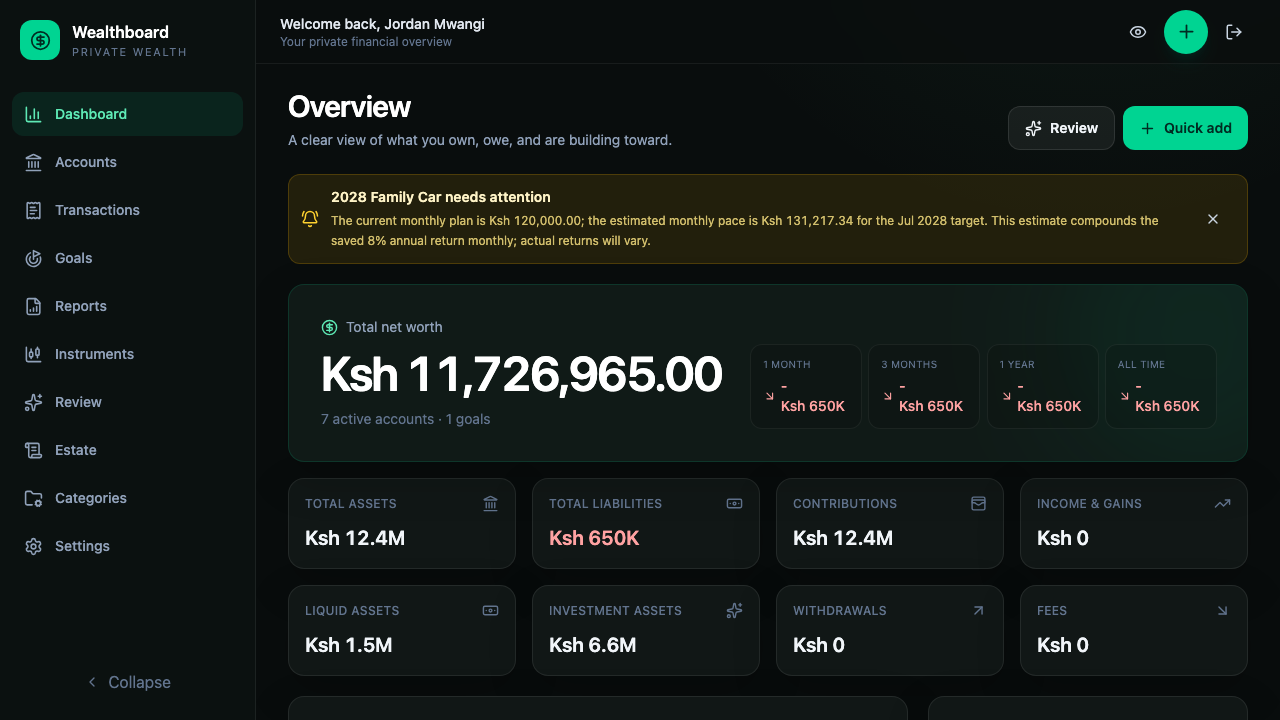
The dashboard combines included assets and liabilities in the configured base currency. All names and values shown in this guide are fictional.
Suggested order for a fuller setup
- Open Settings and confirm display name, base currency, enabled currencies, timezone, and date format.
- Open Institutions if you want consistent provider names across accounts.
- Add liquid accounts and liabilities first.
- Add investments, retirement holdings, land, vehicles, and businesses.
- Add exchange rates for every account currency that differs from the base.
- Create goals only after their linked accounts have trustworthy values.
- Add estate-planning instructions only after the asset list is reasonably complete.
Use the privacy button
The eye icon in the header hides financial values on screen. Use it before sharing your screen or working in a public place.
Choose an appearance
Use the device icon in the authenticated header to cycle through System, Light, and Dark, or select one under Settings → Preferences → Appearance. System follows changes to your device appearance immediately; Light and Dark override it.
Appearance is saved only in this browser and remains selected after logout or when another Wealthboard user signs in. It is not included in portfolio exports or backups. Printed estate summaries remain white with dark text in every appearance.
On a phone
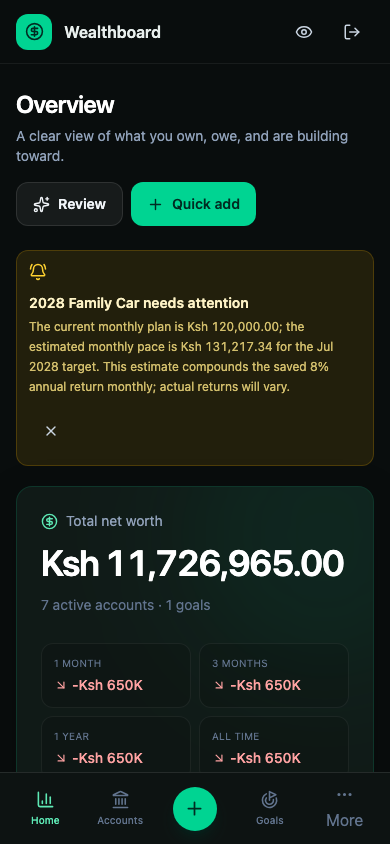
The mobile navigation keeps the most frequent destinations at the bottom. Select More for reports, estate planning, categories, and settings.
Next
Continue with Build your first portfolio for a guided first account, or read Understand the numbers before entering data.